

The API tab is where you generate tokens to pull your survey data into your own tools — dashboards, spreadsheets, alerting, whatever you build. This guide covers creating a token, what it can access, and how to make your first request.
1. Find the app in your Stripe Dashboard
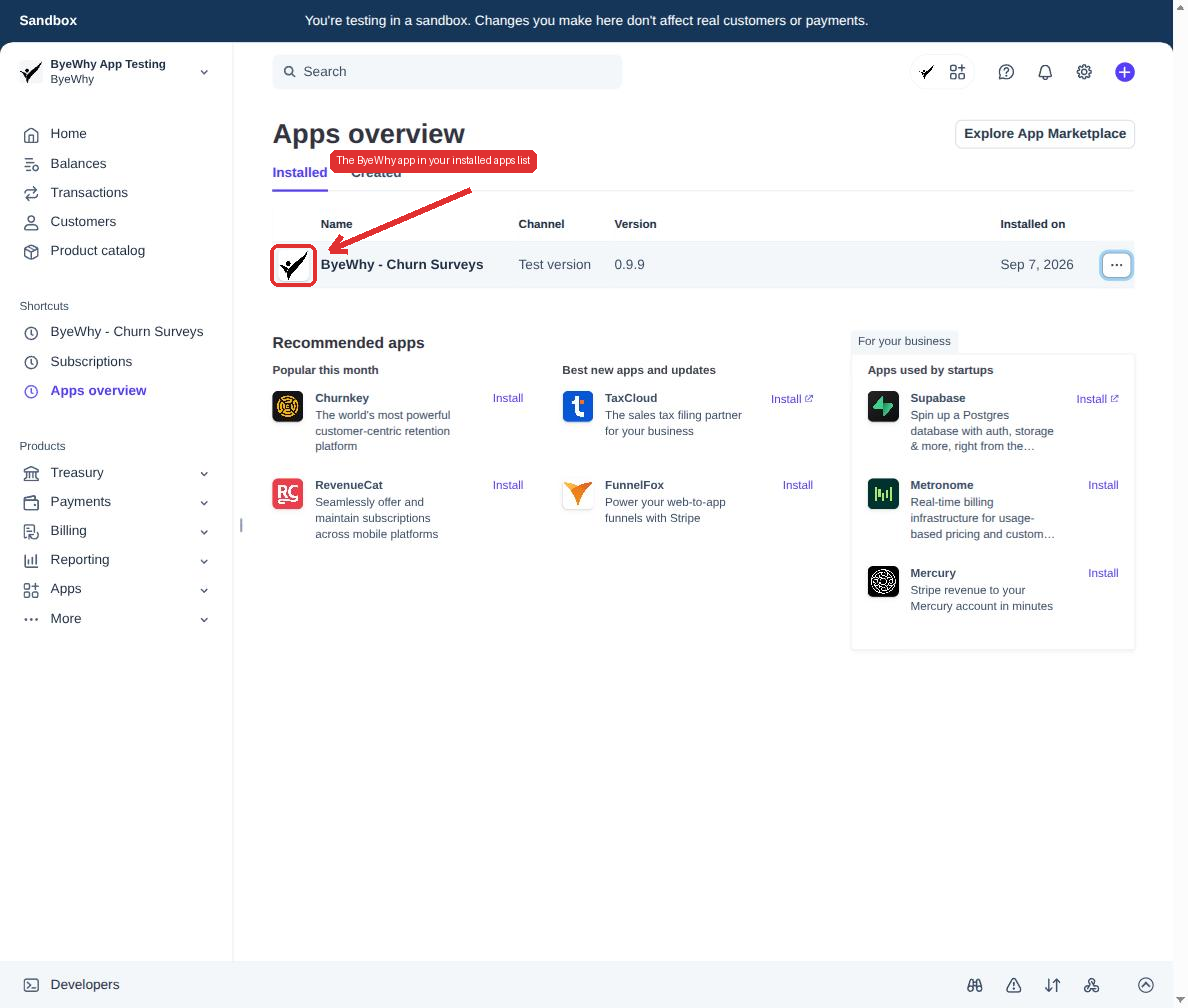
From your Stripe Dashboard, go to Apps → Installed apps. You'll see ByeWhy - Churn Surveys in your list of installed apps.
2. Open the app settings
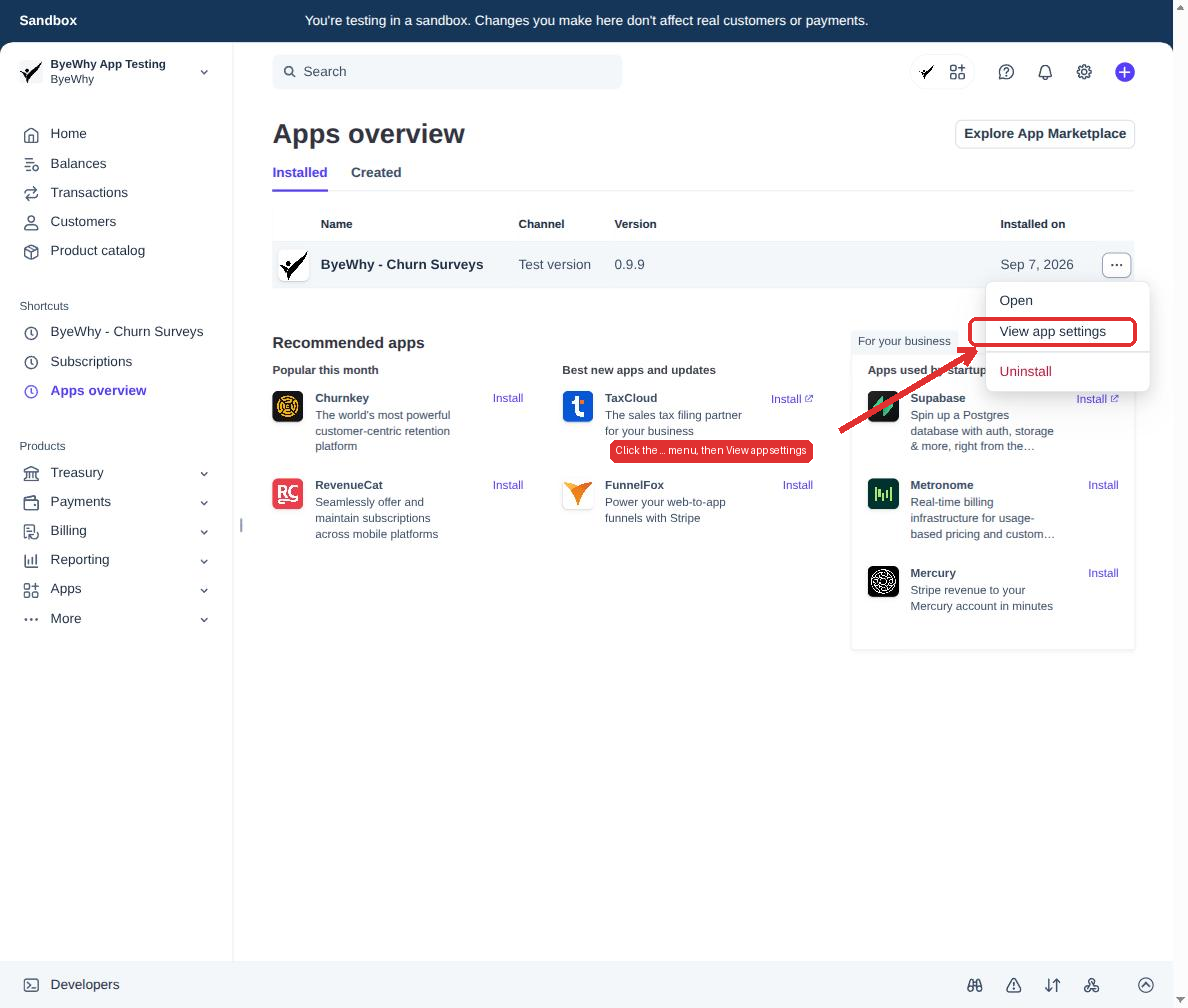
Click the ... menu at the end of the ByeWhy row, then choose View app settings.
3. Go to the API tab
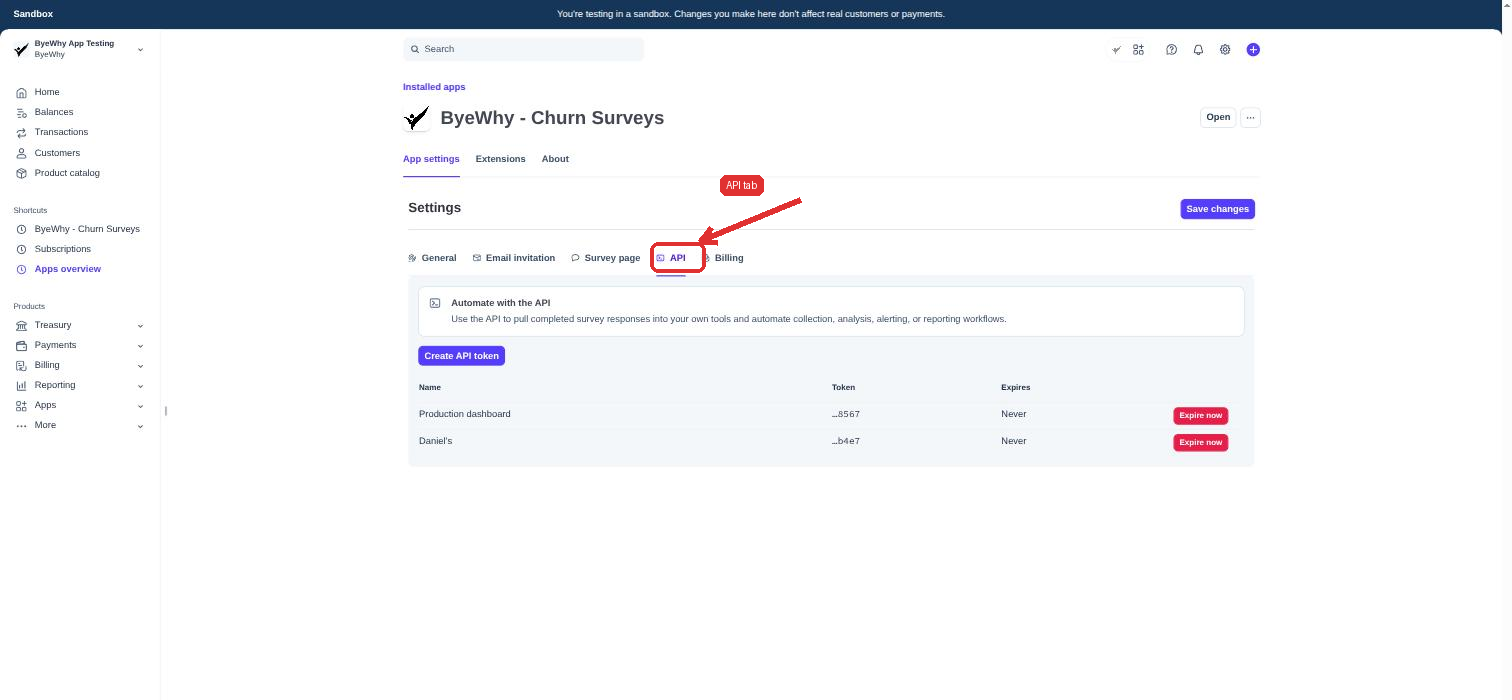
Click over to API — this is where you manage tokens.
4. Create a token
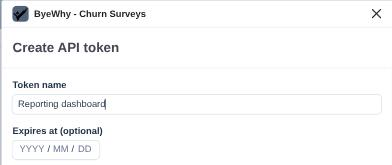
Click Create API token, give it a name so you remember what it's for (e.g. "Production dashboard"), and optionally set an expiration date. Leave it blank for a token that never expires.
5. Copy your token
Click Create and your token is shown once, in full. Copy it somewhere safe — ByeWhy only ever shows the last few characters after this point, and there's no way to retrieve the full value again.
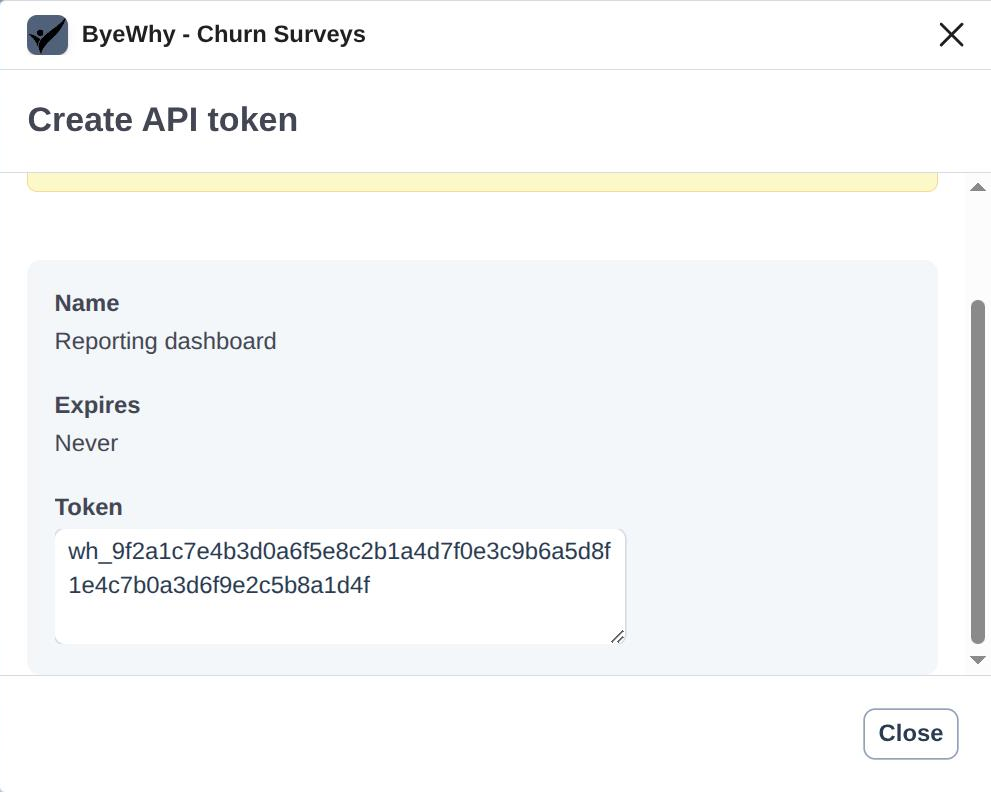
If you lose it, don't worry: create a new token and expire the old one from the table below.
Using your token
Every request needs your token in an Authorization header:
Authorization: Bearer <your-api-token>
Three endpoints are available:
| Endpoint | Returns |
|---|---|
GET /api/v1/responses |
Completed survey responses, paginated. |
GET /api/v1/recipients |
Everyone who's been sent a survey. |
GET /api/v1/billing |
Your current cycle's usage and estimated charge. |
For example:
curl https://byewhyapp.com/api/v1/responses \
  -H "Authorization: Bearer <your-api-token>"
Full request and response schemas, including pagination parameters, are in the interactive reference at /api/docs — paste your token in there to try requests live.
Managing tokens
Existing tokens are listed below the create button, showing their name, last few characters, and expiration.

Click Expire now on any token to revoke it immediately — this can't be undone, so create a replacement first if you're rotating a token still in use somewhere.