

When a customer cancels their subscription, ByeWhy automatically emails them an invitation to take a short survey. This guide walks through finding that email's settings in your Stripe Dashboard, what each field does, and how to preview your changes before they go out.
1. Find the app in your Stripe Dashboard
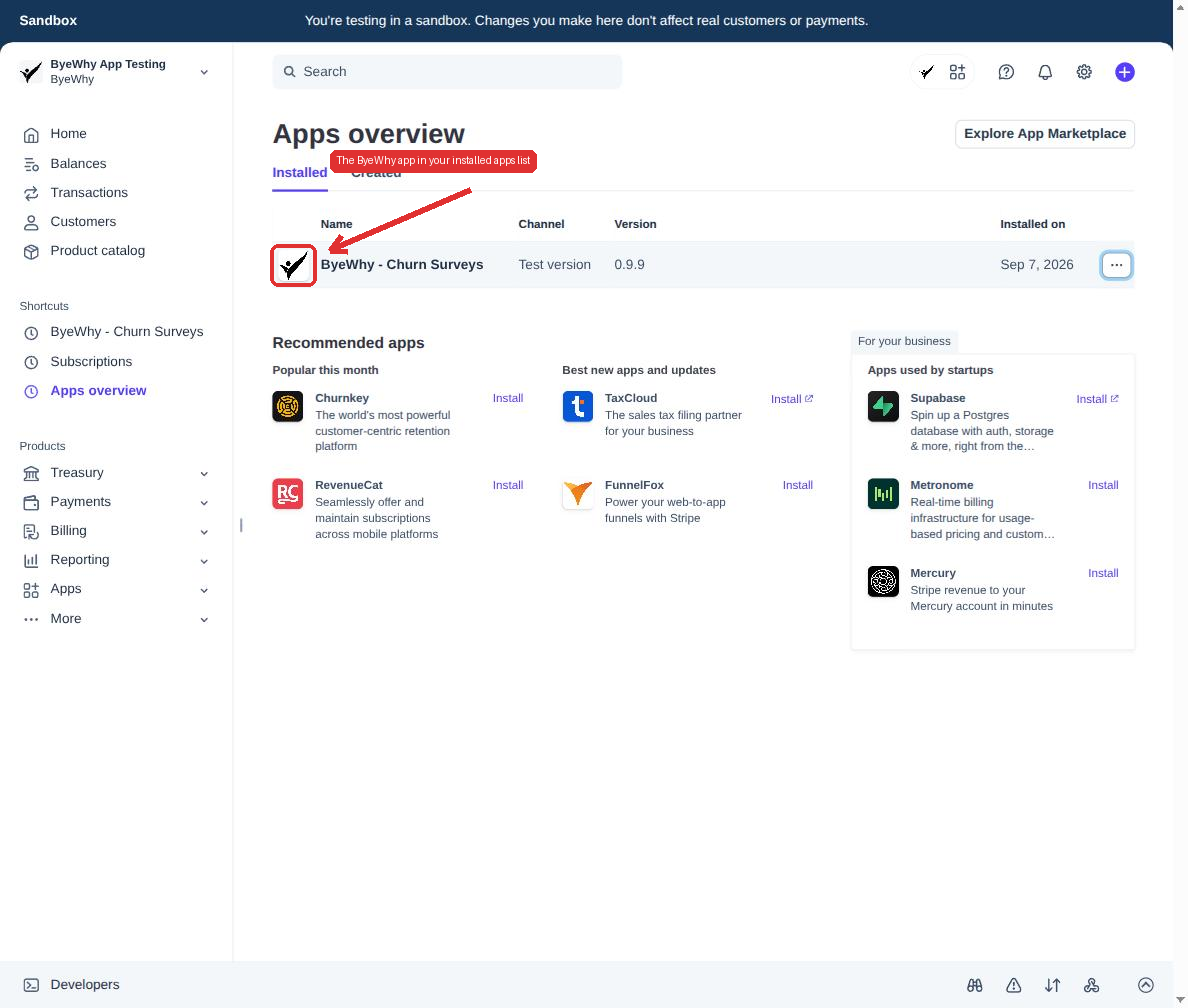
From your Stripe Dashboard, go to Apps → Installed apps. You'll see ByeWhy - Churn Surveys in your list of installed apps.
2. Open the app settings
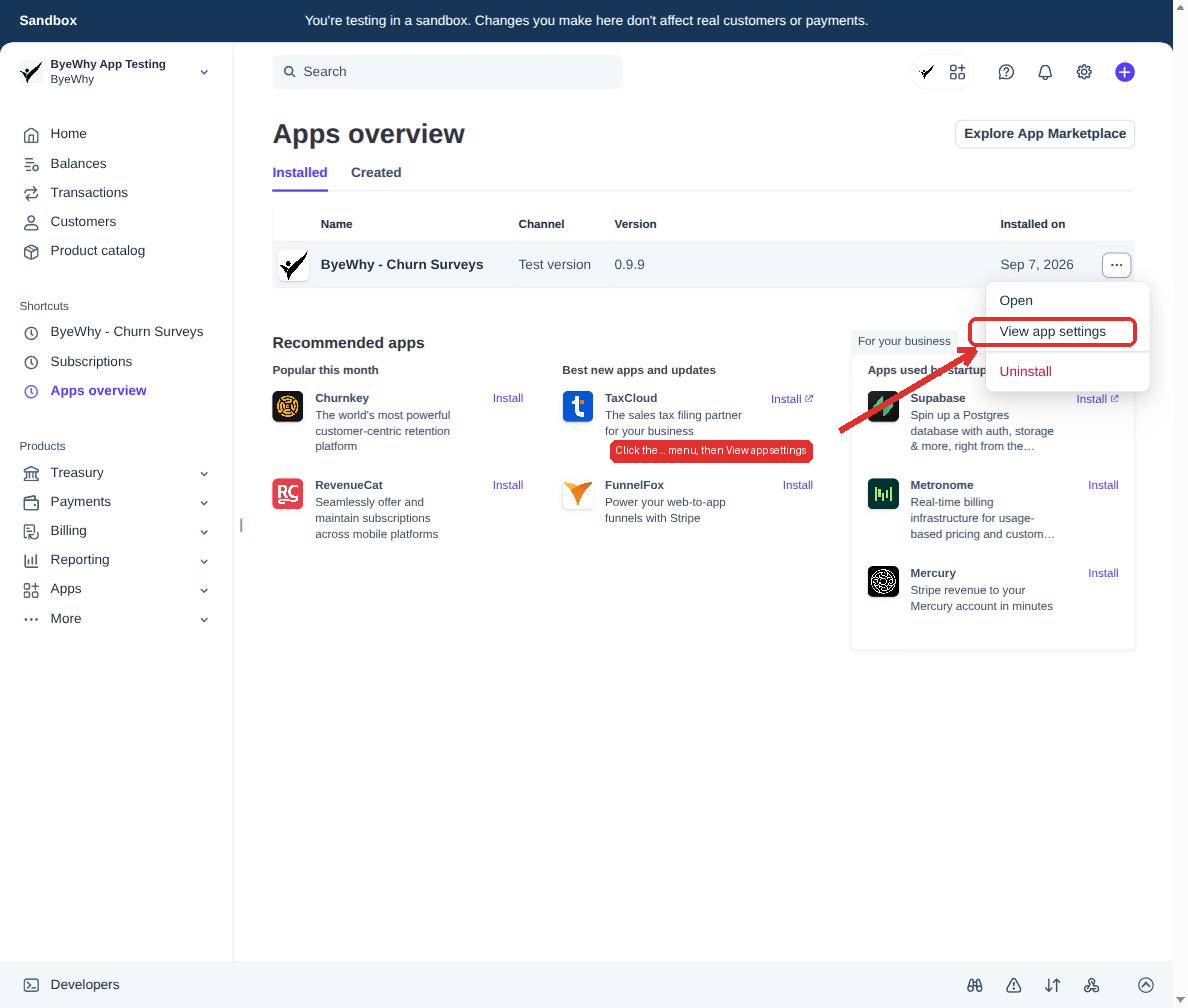
Click the ... menu at the end of the ByeWhy row, then choose View app settings.
3. Go to the Email invitation tab
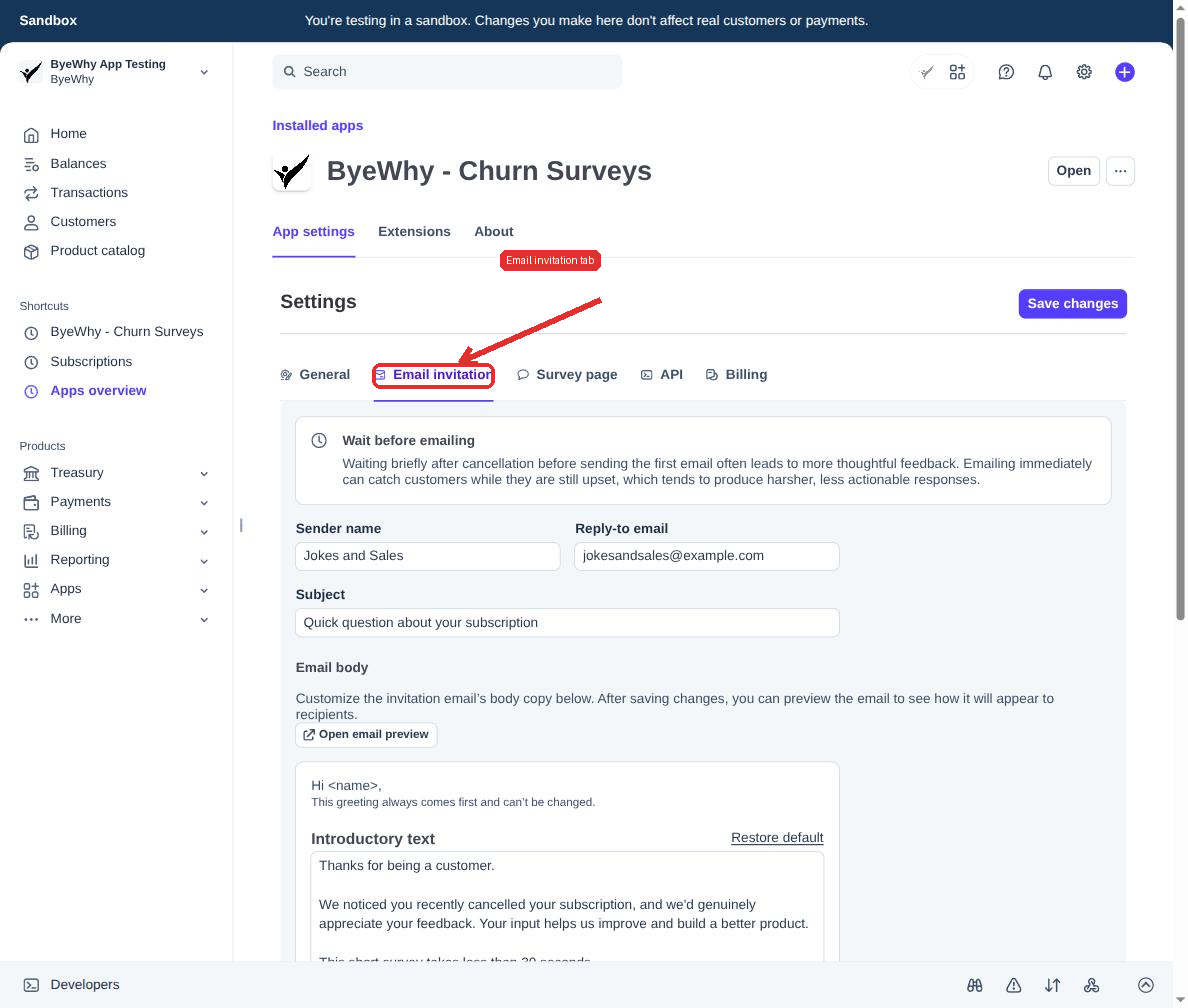
The settings page opens on the General tab. Click over to Email invitation — this is where the cancellation email lives.
What each field does
| Field | What it controls |
|---|---|
| Sender name | The "From" name customers see, and the signature at the bottom of the email. |
| Reply-to email | Where replies go if a customer responds directly to the email. |
| Subject | The email's subject line. |
| Introductory text | The paragraph(s) right after the fixed "Hi <name>," greeting. Use Restore default to reset it to ByeWhy's suggested copy. |
| Button label | The text on the call-to-action button that links to the survey. |
| Concluding text | The paragraph(s) right before your sender name closes the email. Also has a Restore default link. |
| Delay before first email | How long ByeWhy waits after a cancellation before sending this email. Waiting a bit generally produces more thoughtful, less reactive feedback. |
| Send reminder emails | Sends a follow-up if the first email goes unanswered, after the number of days you set (7–21). |
A few things are fixed and can't be customized: the "Hi <name>," greeting always comes first, and the survey-link-expiration note always comes last. If you've attached a promotion code incentive under the General tab, a note reminding you to mention it in the email is shown.
4. Preview your changes
After saving, click Open email preview to see exactly how the email will render for a recipient, with your current copy and branding.
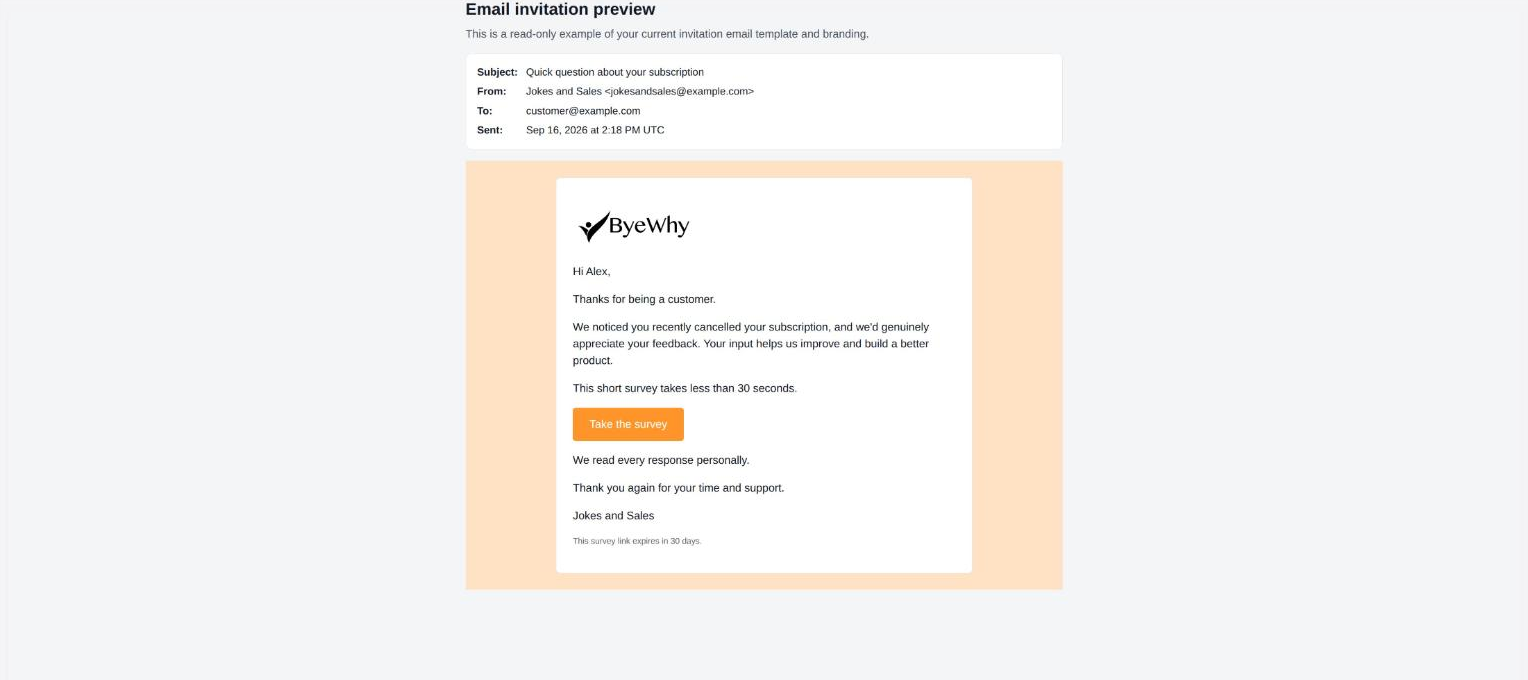
The preview is read-only — use it to double-check subject, copy, and button text before customers start receiving it.