

When a customer clicks through from the cancellation email, they land on your survey page. This guide walks through finding that page's settings, what each field does, and how to preview it before customers see it.
1. Find the app in your Stripe Dashboard
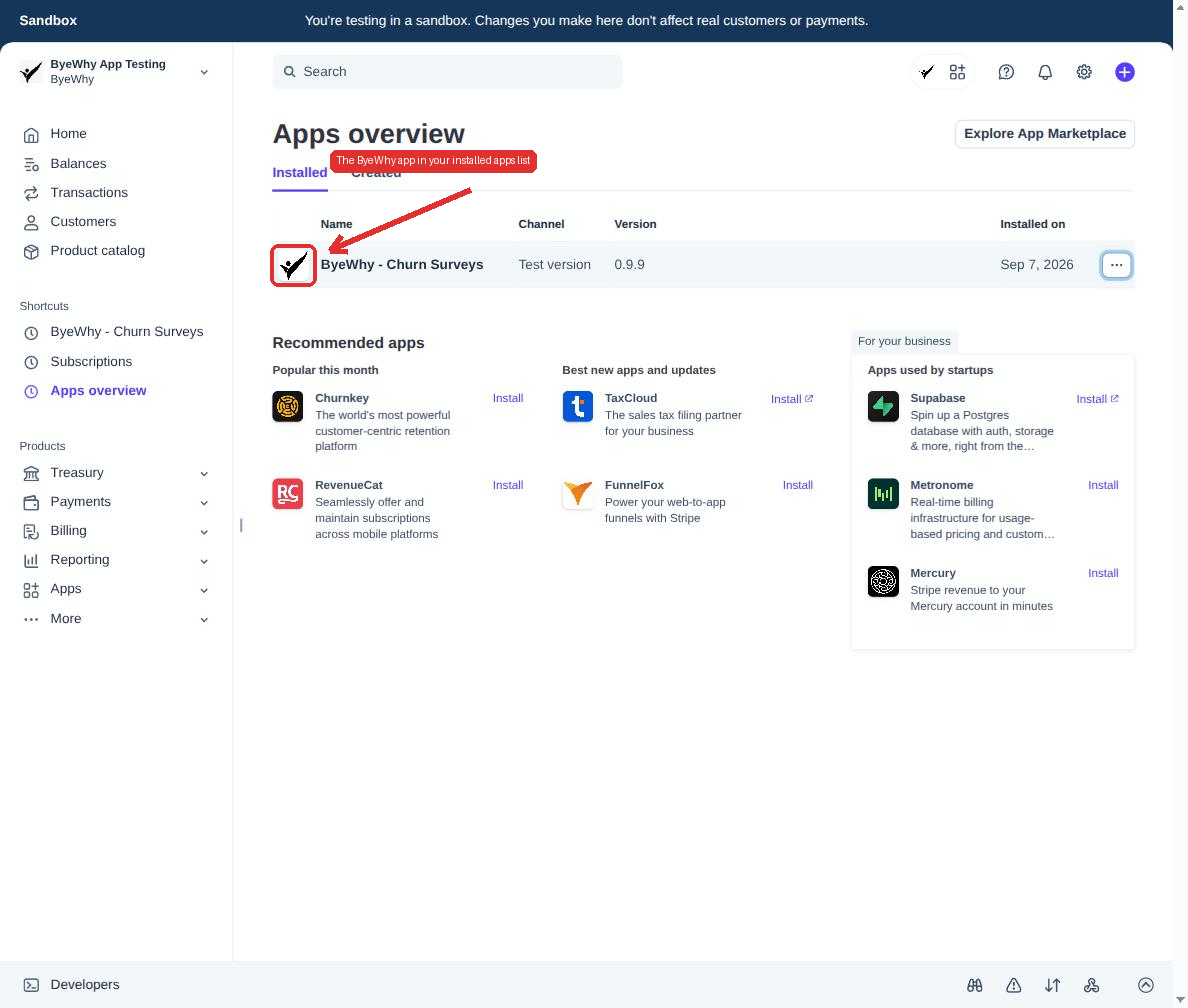
From your Stripe Dashboard, go to Apps → Installed apps. You'll see ByeWhy - Churn Surveys in your list of installed apps.
2. Open the app settings
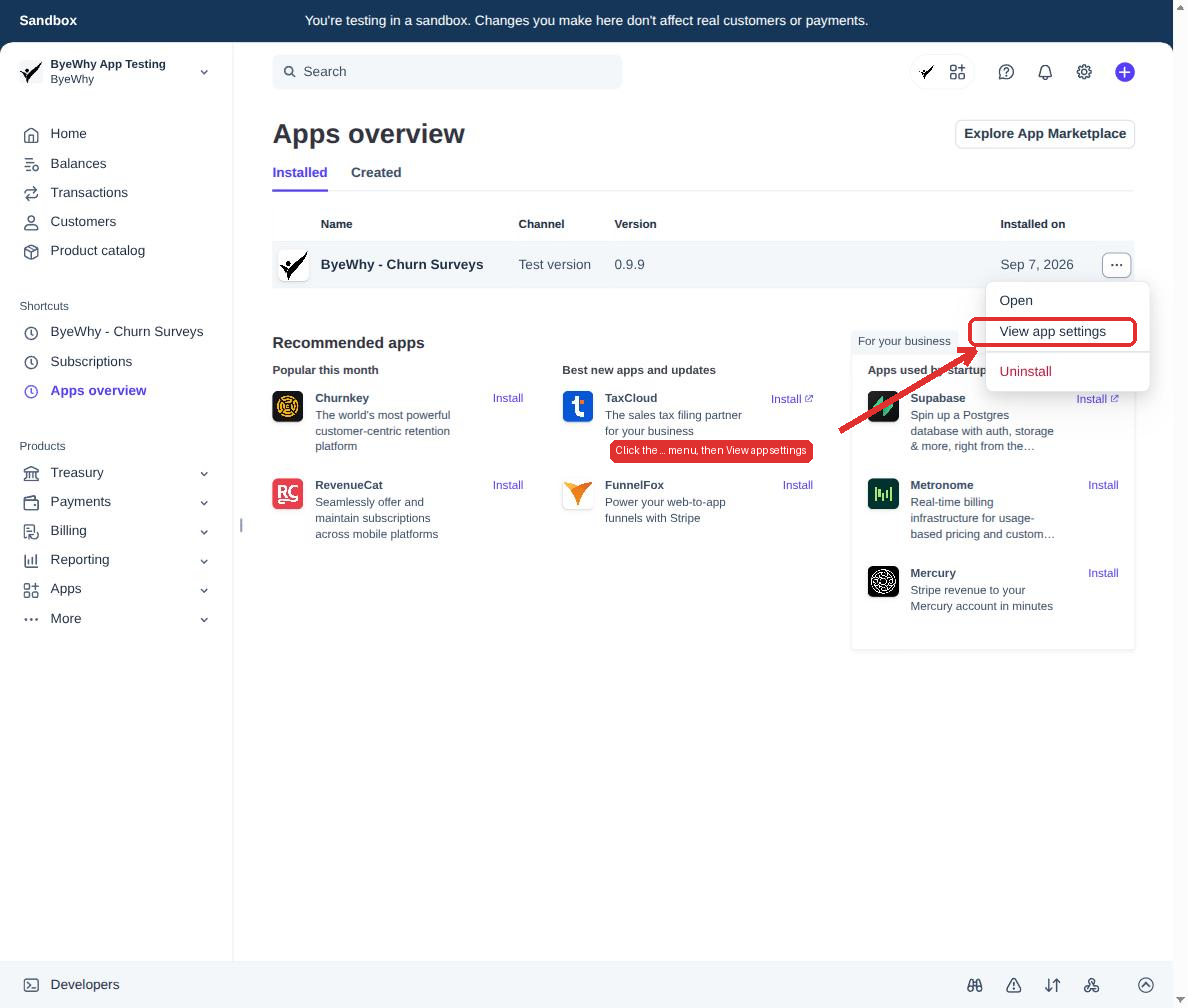
Click the ... menu at the end of the ByeWhy row, then choose View app settings.
3. Go to the Survey page tab
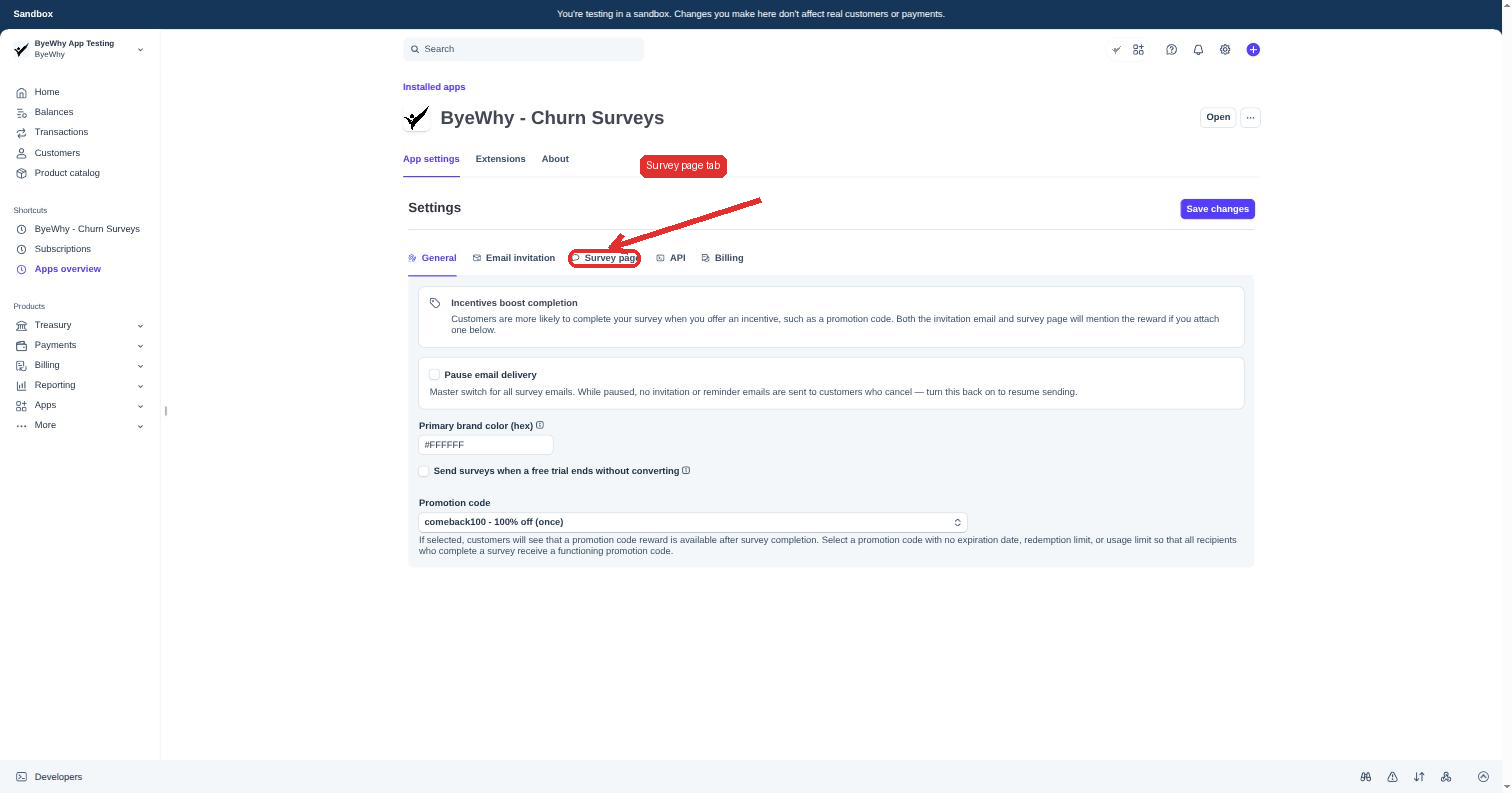
The settings page opens on the General tab. Click over to Survey page — this is where the survey your customers fill out lives.
What each field does
| Field | What it controls |
|---|---|
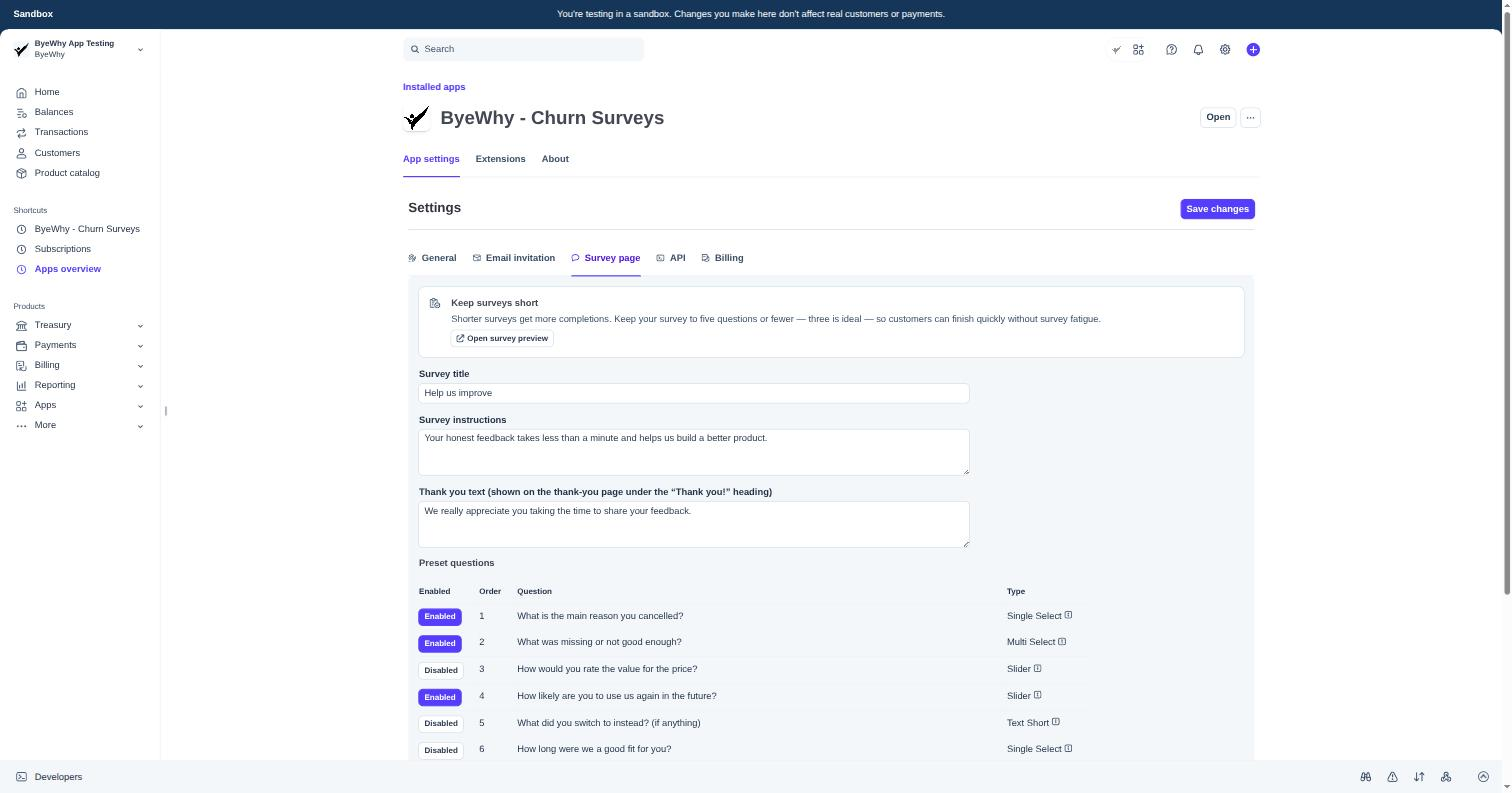
| Survey title | The heading at the top of the survey page. |
| Survey instructions | The short paragraph under the title that tells customers what to expect. |
| Thank you text | Shown under the "Thank you!" heading on the page customers see after they submit. |
| Preset questions | Ready-made questions you can turn on or off with a click. Toggle Enabled/Disabled per question — no editing required. |
Keep it short: five questions or fewer keeps completion rates high, and three is often ideal. Mixing question types (single select, multi select, slider, short text) usually reads better than a long list of the same type.
Want to ask something the preset questions don't cover? See Managing custom survey questions for adding, editing, and removing your own questions.
4. Preview your survey
Click Open survey preview to see exactly how the survey will look and behave for a customer, with your current title, instructions, and enabled questions.
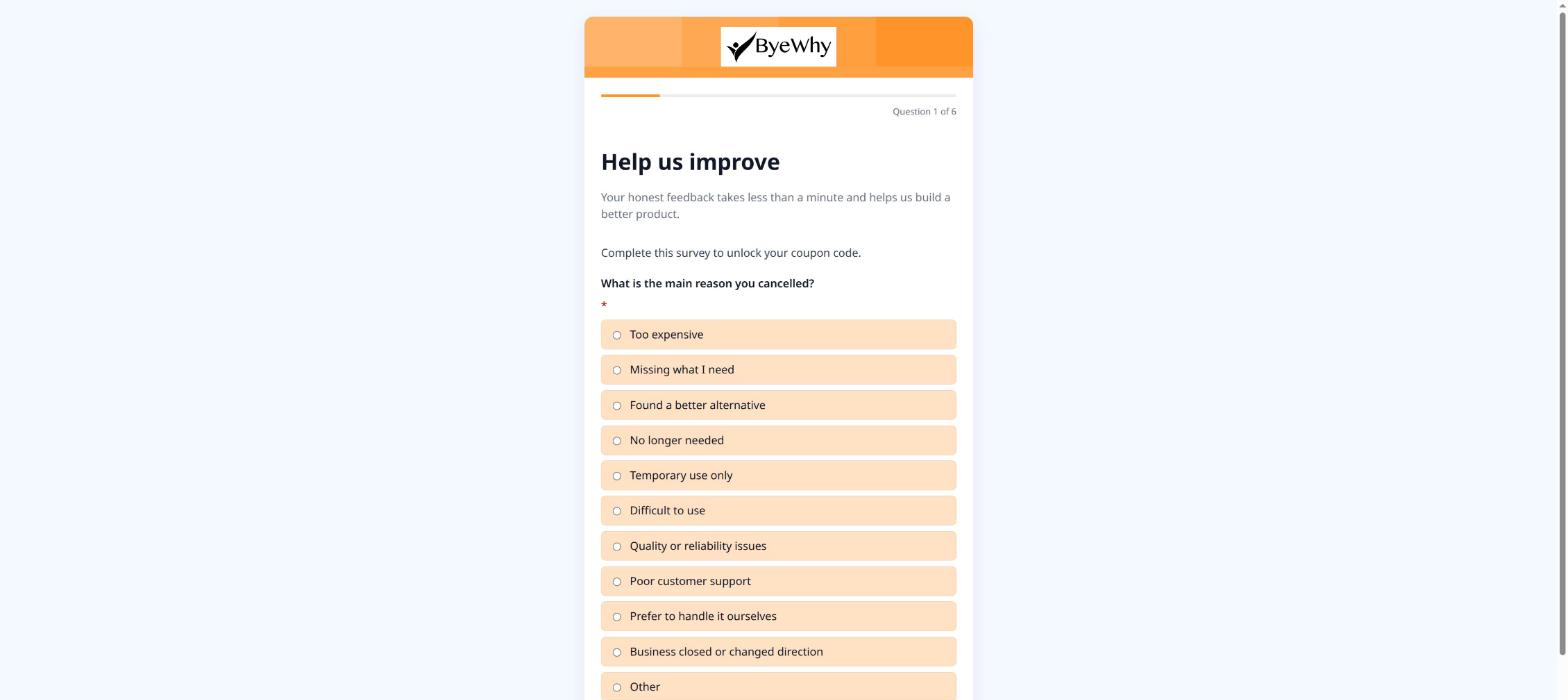
The preview is read-only — submitting it doesn't save a response, so it's safe to click through the whole thing before customers start seeing it.