

Promotion codes are created in Stripe, not in ByeWhy — the app just lets you attach one as an incentive on the General tab (see General Settings). This guide walks through creating one from scratch in your Stripe Dashboard.
1. Create a coupon
From your Stripe Dashboard, go to Product catalog → Coupons and click Create coupon. A coupon defines the discount itself, and a promotion code (the part customers actually enter) is created from it in the same form.

2. Name it and set a discount
Give the coupon a name — this is just for your own reference, customers never see it — and choose Percentage off or Fixed amount off with however much you want to offer for finishing the survey.
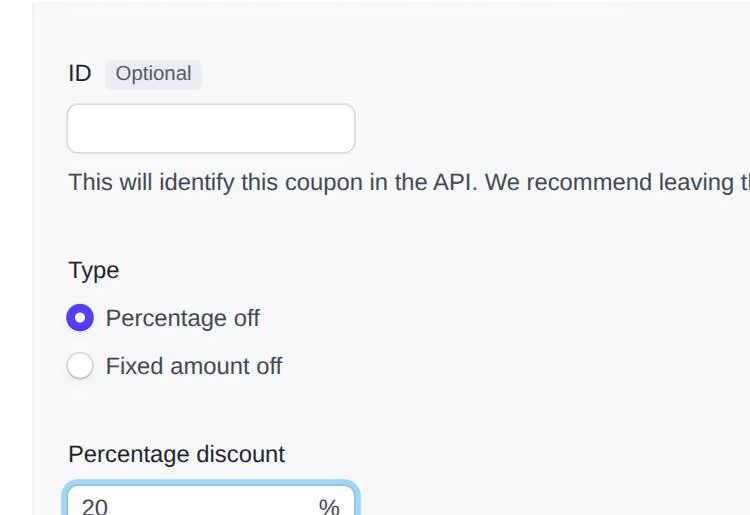
3. Turn on customer-facing promotion codes
Scroll down to Codes and turn on Use customer-facing promotion
codes. A code field appears — type your own (e.g. THANKYOU20) or leave
it blank to have Stripe generate one.
This is the important part for ByeWhy: leave every restriction below it — first-time order only, specific customer, redemption limit, expiration date, minimum order value — unchecked. Every customer who completes a survey should get the same working code; any of these restrictions will leave later respondents with a code that doesn't work.
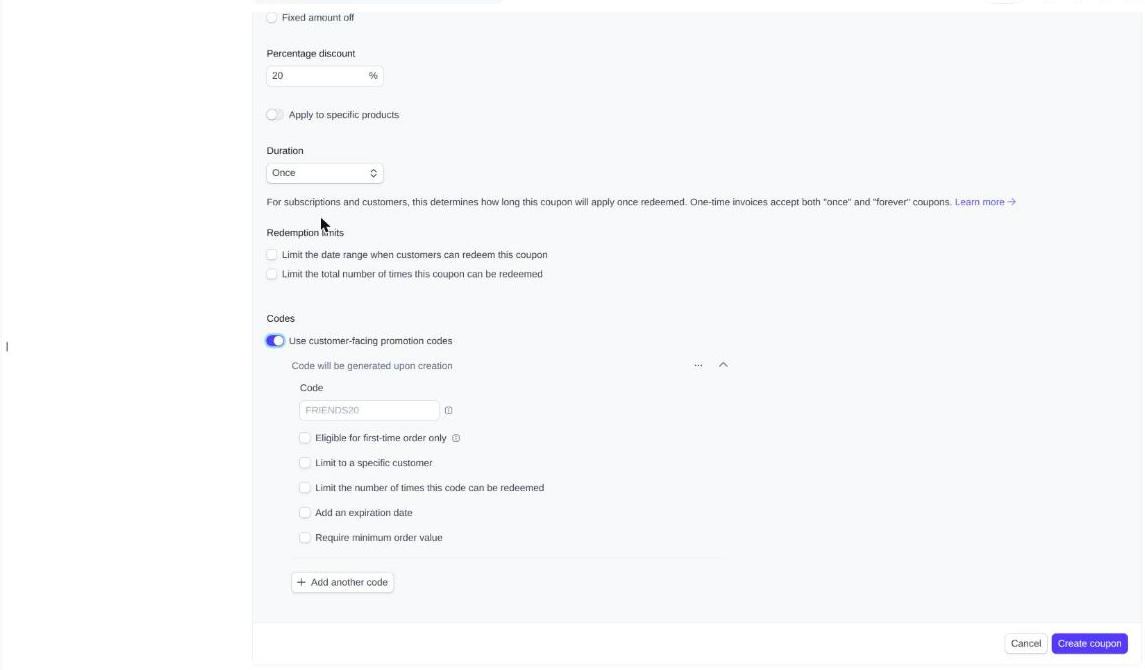
Click Create coupon.
4. Copy the code
You'll land on the coupon's detail page, now showing the promotion code you just created under Promotion codes.
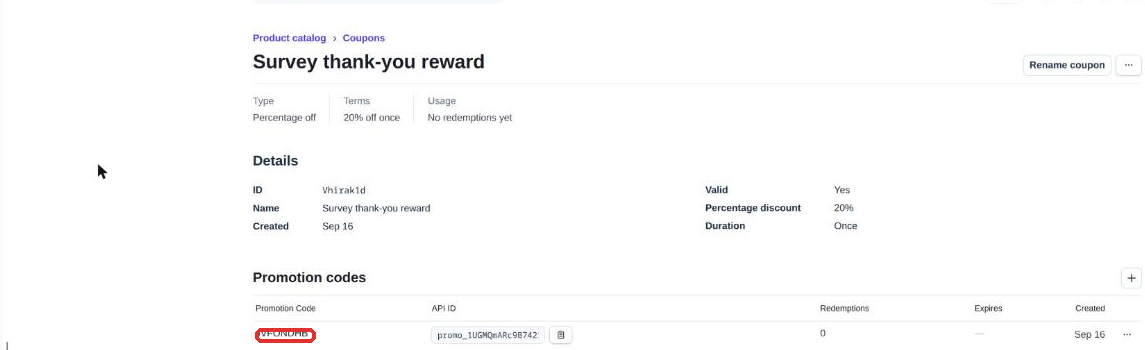
5. Select it in ByeWhy
Head back to ByeWhy's General tab and open the Promotion code dropdown — your new code appears there automatically, no copying and pasting required.
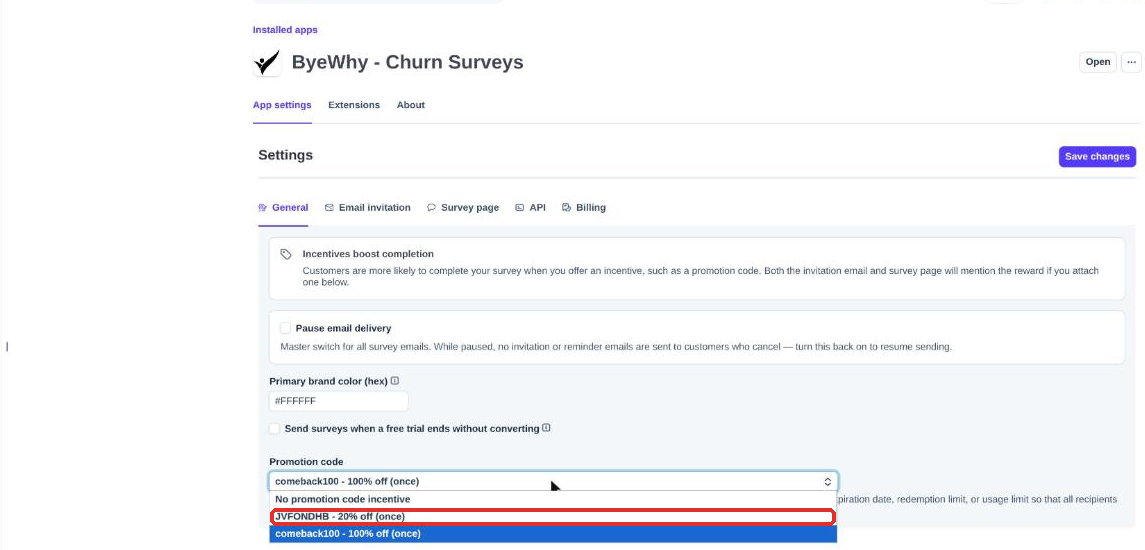
Select it and save. See General Settings for the rest of that tab.