

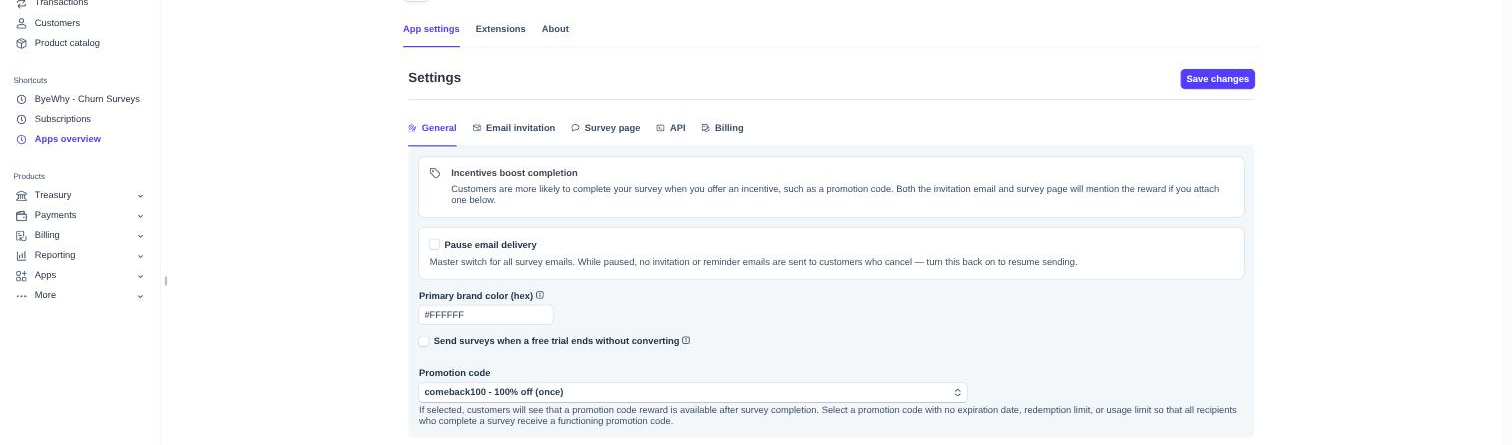
The General tab covers whether survey emails are sending at all, your brand color, which cancellations get surveyed, and any promotion code incentive you offer. It's also the first tab you land on when opening the app's settings.
1. Find the app in your Stripe Dashboard
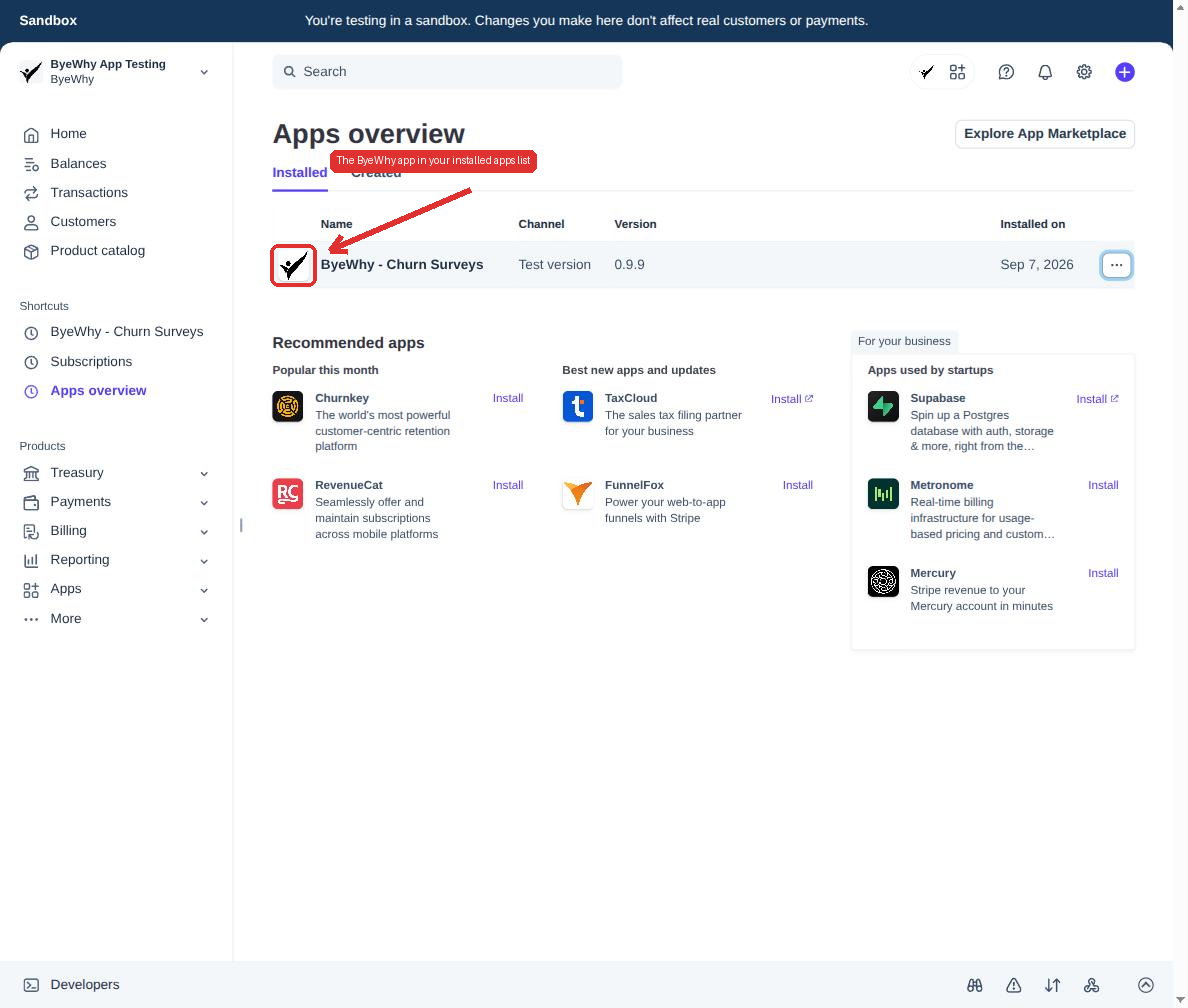
From your Stripe Dashboard, go to Apps → Installed apps. You'll see ByeWhy - Churn Surveys in your list of installed apps.
2. Open the app settings
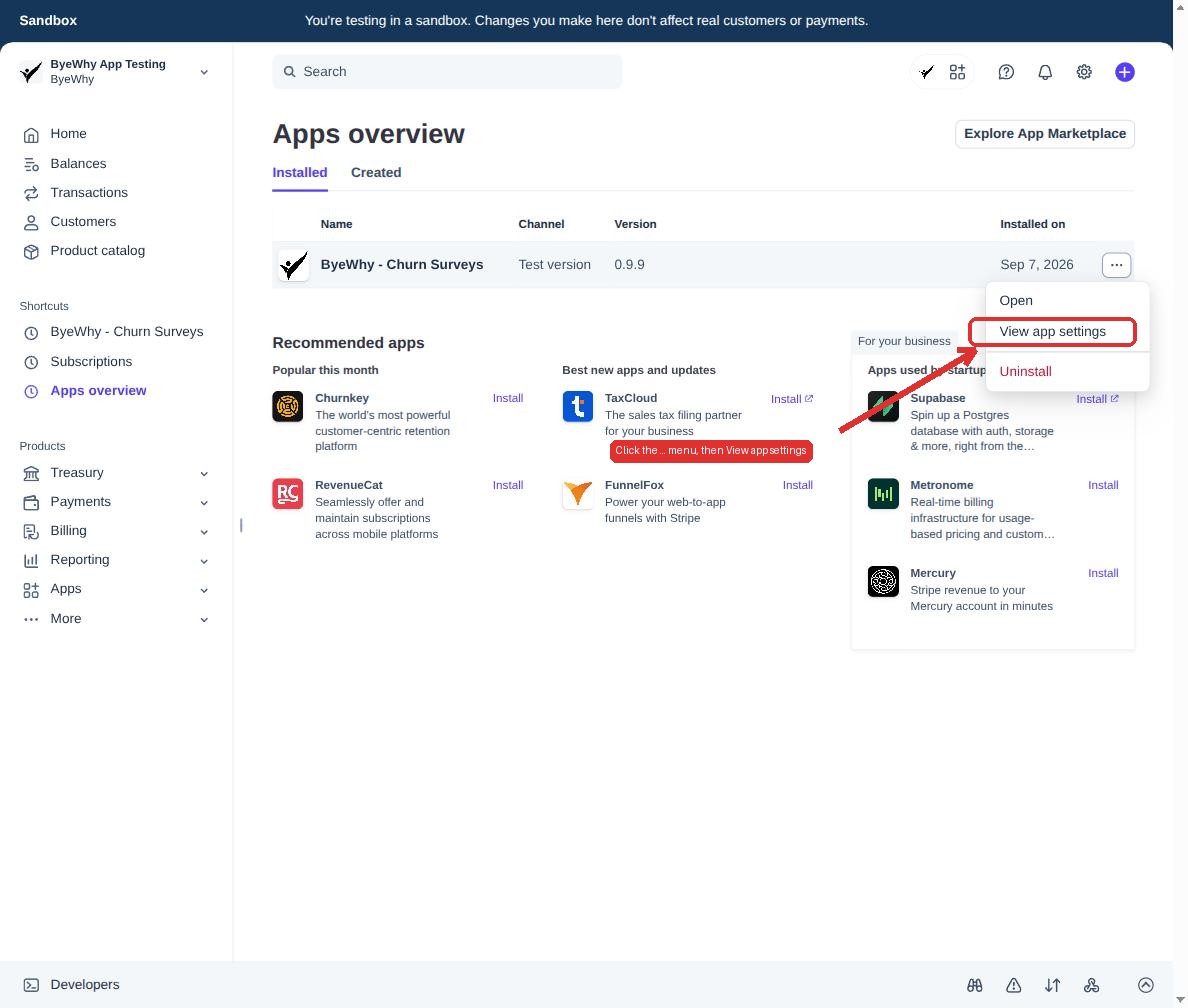
Click the ... menu at the end of the ByeWhy row, then choose View app settings. The settings page opens directly on the General tab — there's nothing else to click.
What each field does
| Field | What it controls |
|---|---|
| Pause email delivery | Master switch for all survey emails. While on, no invitation or reminder emails go out to anyone, regardless of billing status. |
| Primary brand color (hex) | Used to style the invitation email and the survey page. |
| Send surveys when a free trial ends without converting | Off by default — surveys only go out when a paying subscription ends. Turn this on to also survey trial customers who never converted. |
| Promotion code | An optional incentive mentioned in the invitation email and on the survey page once a customer completes it. |
A couple of things worth knowing:
- Pause email delivery is a setting you control here on purpose. It's different from the automatic pause that kicks in when no payment method is on file — see Understanding Charges for that side of things.
- For the promotion code field to work well, use a code with no expiration date, redemption limit, or usage limit, so every customer who completes a survey gets a functioning reward. See Creating a Promotion Code for how to set one up in Stripe.