

No payment method will be charged to install ByeWhy or to collect your first 3 completed survey responses each month — those are always free. There's also no base monthly fee for using ByeWhy. However, you need a card on file to keep survey invitation emails going and to continue collecting survey responses. This guide walks through adding one. For the rest of the Billing tab, see Understanding Charges.
1. Open the Billing tab
From the app's settings, go to the Billing tab and click Manage subscription and payment method (this reads Add payment method if you haven't added one yet).
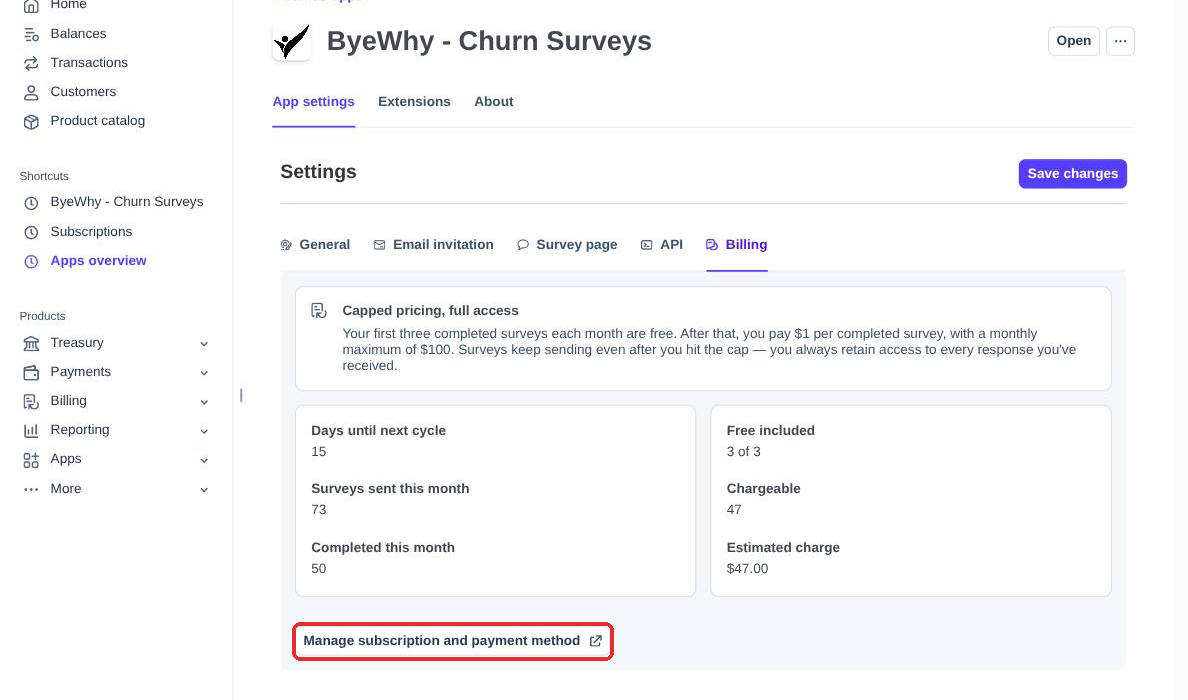
This opens Stripe's hosted Billing Portal in a new tab — a page Stripe manages on your behalf, so you never hand card details to ByeWhy directly.
2. Go to Wallet
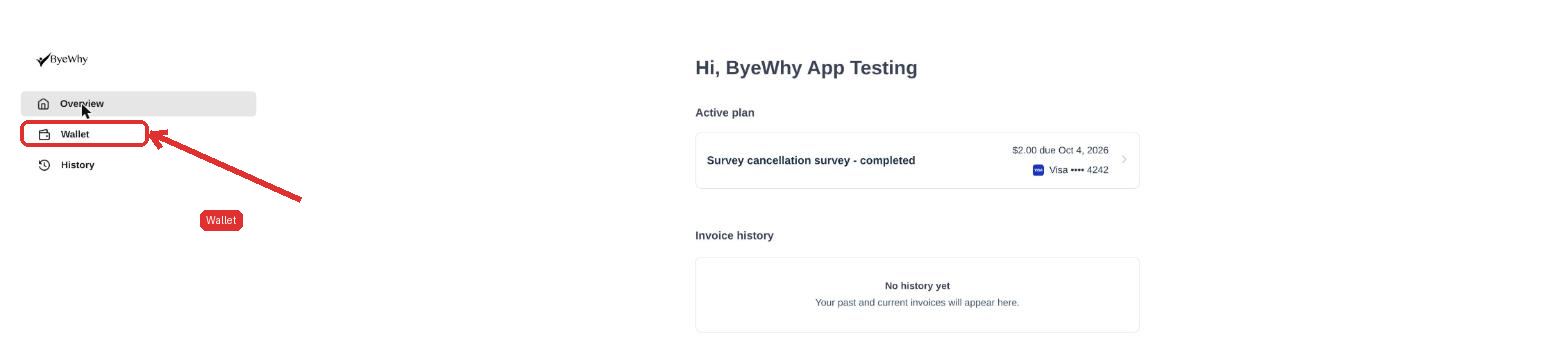
The portal opens on Overview, showing your active plan and invoice history. Click Wallet in the sidebar to manage payment methods.
3. Add a payment method
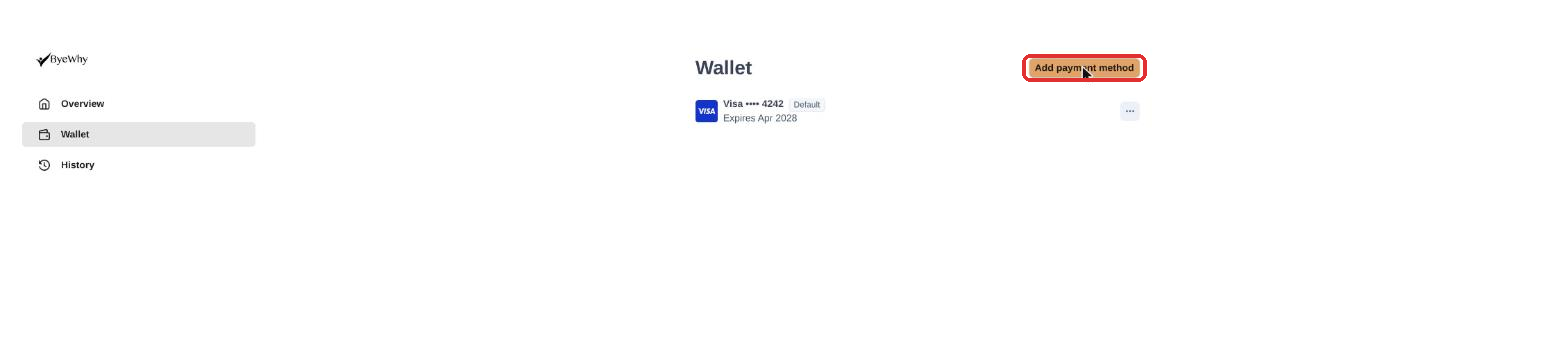
Wallet lists any cards already on file. Click Add payment method to add a new one.
4. Fill in your card details
Enter your card number, expiration, security code, and billing ZIP, then save. You can also pay by bank account, Cash App Pay, or Amazon Pay.
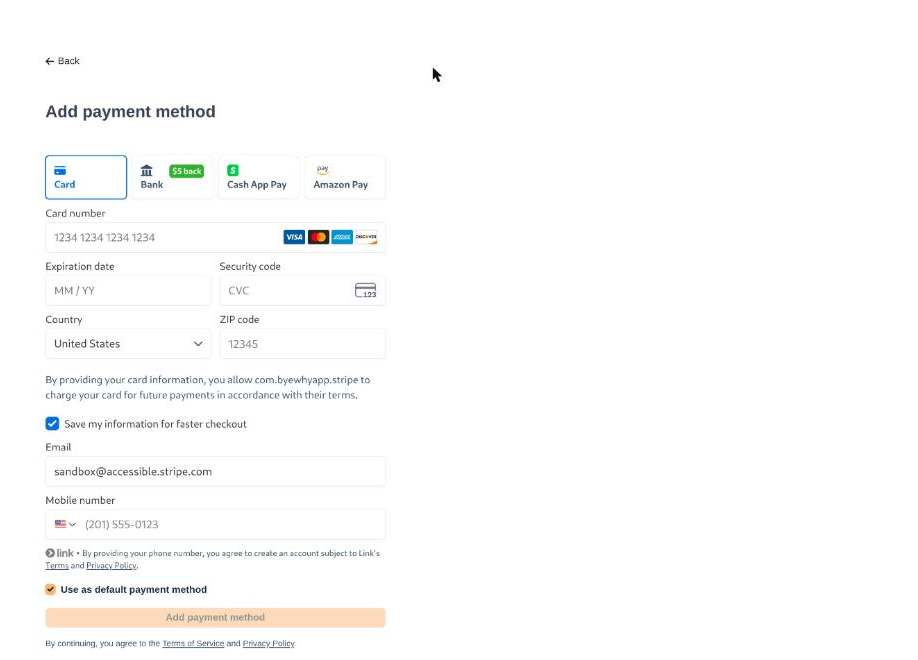
Once saved, it becomes your default payment method, survey emails resume if they were paused, and you'll be billed automatically at the end of each cycle for anything beyond your 3 free responses that month.
You can come back to this same portal any time to swap cards, update an expiration date, or check past invoices. If you want to stop using ByeWhy altogether, see Canceling Your Subscription.