

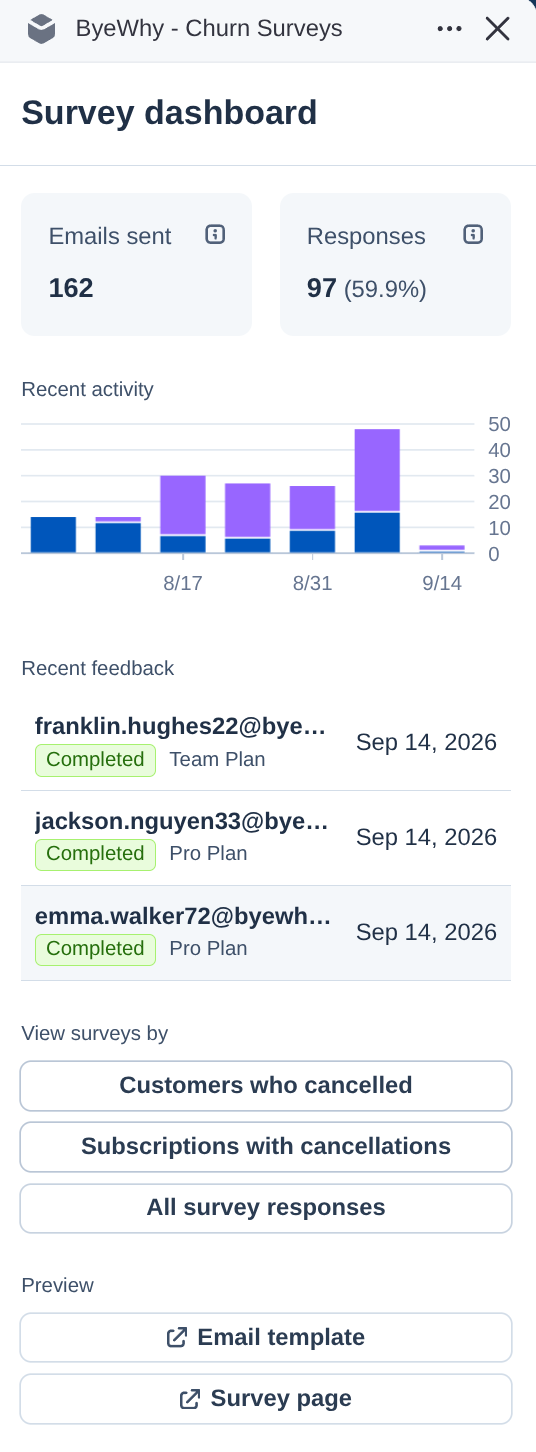
The drawer is ByeWhy's home surface inside Stripe — it opens whenever you click the ByeWhy icon in the Stripe Dashboard, including from the Dashboard homepage. It's meant to be a quick at-a-glance check, not the place you dig through every response. For that, see Full Page Dashboard.
Payment method reminder
If you haven't added a payment method yet, a banner appears at the top of the drawer letting you know survey emails are paused, with a button that takes you straight to the Billing Portal to add one. See Managing Payment Methods for the full walkthrough — your first 3 completed responses each month are always free, so this only matters once you're past that.
Basic stats
Two tiles at the top summarize your all-time numbers:
| Tile | What it shows |
|---|---|
| Emails sent | Every survey invitation sent so far. Not every cancellation gets one — some customers have no email on file, a previously bounced email, or were already surveyed within the last 30 days. |
| Responses | How many of those invitations got at least one answer, plus the response rate. A response counts as soon as a customer saves an answer — they don't have to finish the whole survey. |
Trend chart
Below the stat tiles is a compact, all-time chart of your cancellation trend over time — the same chart that appears (with more detail and a time period selector) on each tab of the full page dashboard.
Recent feedback
If you have any, the drawer lists your 3 most recent survey responses — who responded, their status badge, and which subscription they cancelled. Click any row to open the full response in a detail panel without leaving the drawer.
View surveys by
Three buttons deep-link into the corresponding tab of the full page dashboard:
- Customers who cancelled — individual cancellations
- Subscriptions with cancellations — cancellations grouped by product
- All survey responses — full per-question detail, with export
See Full Page Dashboard for what each of these tabs (and their exports) actually contains.
Preview
Two buttons open live previews in a new tab, exactly as a customer would see them:
- Email template — the cancellation survey invitation email
- Survey page — the survey form itself
Useful for checking how a customization change looks before it goes out to real customers. See Customizing Survey Page and Customizing Cancellation Email to change what these previews show.